
Community
Community feed and activity sharing
What shows up in your Xsporty feed, how to follow players and share photos and videos, and who can see your activity.
Updated · Leer en español
Xsporty is more than a list of games. Follow the people you play with, share photos and videos from the court, and choose who sees what — all from the app.
What is the community feed?
The Home tab is your feed. At the top, Up next shows the games you've already joined. Below that are upcoming Tournaments, then upcoming games near you.
By default the feed shows every sport and level within 25 miles. Open the filters to narrow it by Sport, Location & Distance, When, Time of Day, Skill Level and Age Range, or use Search events to find a game by name.
The feed only shows games. It doesn't show updates from the players you follow — open someone's profile to see what they've been up to.
What other players can see
Anyone on Xsporty can open your profile. Here's what they see:
- Overview: games played, streaks, MVPs, your sports and teammates.
- Your ratings, as averages. After each game, players rate each other and vote for the MVP. Other players only see your average in each category, and only once you have at least 3 reviews. Individual reviews and who voted for whom are never shown to them.
- Groups: the groups you belong to, including private ones.
- About and Media, unless your profile is private.
- The games you join. Anyone who opens a game can see who's in.
Win-loss-draw (W-L-D) records are part of Xsporty Athlete, so only players with Xsporty Athlete can see them.
Private profiles. If your profile is private, players have to send you a follow request, and only the followers you accept can see your About and Media tabs. Your Overview and Groups stay visible to everyone.
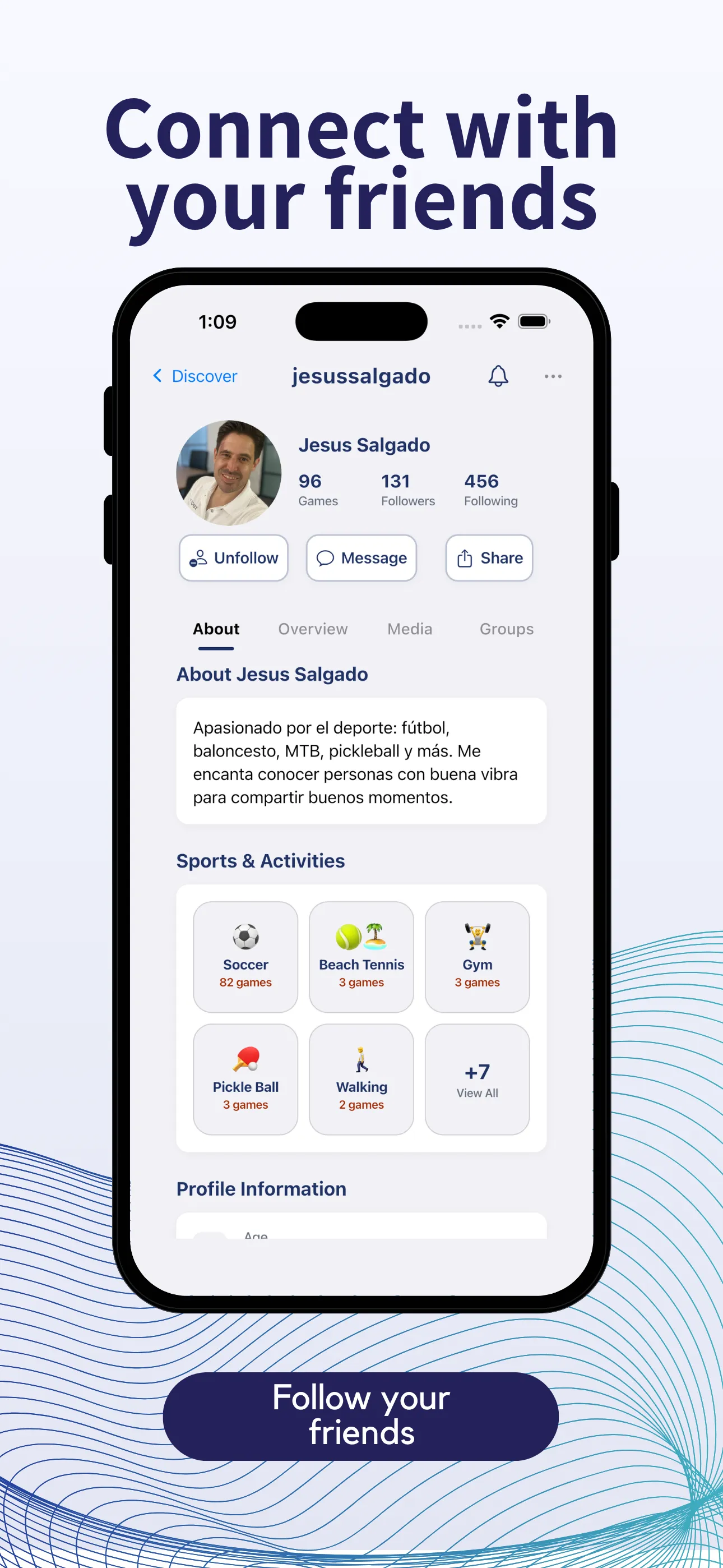
Following players
- Open a player's profile: tap their name in a game's participant list, tap their photo in an event chat, or search for them in Discover (the magnifying glass) under Players.
- Tap Follow. If their profile is private, the button says Request and shows Requested until they accept.
- Tap Message to send them a direct message, or Share to send their profile to a friend.
They'll get a notification that you followed them, unless they've turned follow notifications off. Your profile shows how many games you've played, your followers and who you follow — tap a count to see the list. To unfollow someone, open their profile and tap Unfollow.
Sharing photos and videos
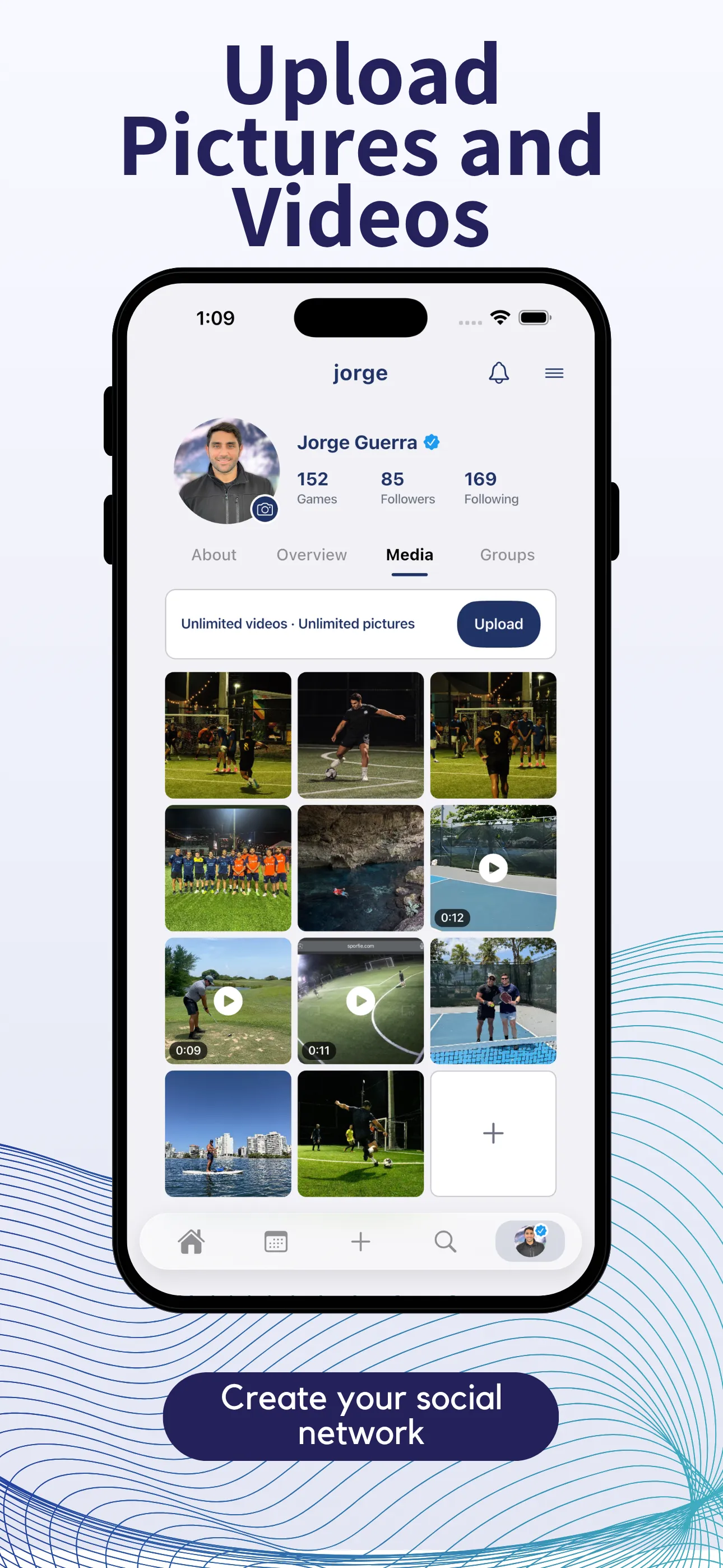
Every player has a Media tab on their profile for pictures and videos from games — team photos, highlights, the view from the court.
- Open your profile and tap Media.
- Tap Upload, then take a photo or video or pick one from your phone. Videos can be up to 15 seconds long.
- That's it — it shows up on your profile.
Free accounts can upload up to 8 photos and 3 videos per calendar year. The count resets on January 1, and hidden uploads still count toward it. With Xsporty Athlete, uploads are unlimited.
Anyone on Xsporty can see your Media tab — or only your followers, if your profile is private. Open any of your uploads to Hide from profile or Delete it.
Sharing a game
Tap the share icon on any event card or event page. You can send the link through WhatsApp, post it to an Instagram Story, send it to an Xsporty group or copy it. Whoever opens the link sees the game in the Xsporty app if they have it, or in the web app if they don't, and can join from there.
Who can see your games
When you create a game, Who can join decides who can find it:
- Open: it shows up in Home and search, and anyone can join.
- Approval required: it still shows up in Home and search, but you approve each player.
- Invite only: it doesn't show up in Home or search. Creating invite-only games requires Xsporty Athlete.
Invite only keeps a game unlisted, not secret: anyone with the link can still open it and see who's in, so only share it with people you want there.
To change this after creating a game, open the game, open its menu and tap Edit Event.
Groups can be public or private. Private groups show a lock icon and you have to request to join, but they still appear in Discover search. When you link a new game to a group, it switches to Approval required. It isn't hidden from Home or search — choose Invite only for that.
Notifications
To choose what Xsporty notifies you about, open your profile, tap the menu (☰) at the top right, then go to Profile Settings → Notification Settings. You can turn each of these push notifications on or off:
- Message Notifications: direct messages and event chats.
- Game Notifications: updates about your games, including when a spot opens up and you move up from the reserve list, and new games in your groups.
- Follow Notifications: new followers and follow requests.
- App Updates: news about new features.
On the same screen you can set Event Reminders and Quiet Hours. You can also mute a single game from your notifications so its chat and updates stop alerting you.
Keeping the community safe
You can report a player from their profile (tap …, then Report User), a chat message (press and hold it, then Report Message) or a game (open its menu, then Report Event). Our team reviews every report within 24 hours.
To block a player, open their profile, tap …, then Block User. Blocking unfollows you from each other and stops either of you from following or messaging the other from your profiles. It doesn't hide your profile or games from them or remove chats you already share, so if someone makes you feel unsafe, report them too.
Our Terms of Use explain what's not allowed, and our Privacy Policy explains how we handle your data.
Frequently asked questions
Does my feed show what the players I follow are doing?
No. The Home feed only shows games. Open a player's profile to see their games, stats and media.
Can other players see my ratings?
Only as averages per category, and only once you have at least 3 reviews. Individual reviews are never shown.
How many photos and videos can I upload?
Free accounts can upload 8 photos and 3 videos per calendar year; videos are up to 15 seconds. Xsporty Athlete removes the limit.
Still need help?
Players, organizers and venues — we reply in English or Español.